How to Choose the Right Touch Screen Controller for Your Project
Choosing the right touch screen controller is very important. It can help your project succeed or fail. You must check if it works with your system. You also need to look at the kind of touch technology. Think about how well the controller works. Every project has different needs. Pick a controller that fits your project and where you will use it.
Hardware and software are both important. You should know how they work together before you pick a touch screen controller.
Key Takeaways
Pick a touch screen controller that matches your project’s size, use, and where it will be. This helps your project work well.
Choose between resistive or capacitive touch technology. Think about if you need multi-touch, accuracy, or something strong.
Make sure the controller works with your system and software. This helps you avoid expensive changes and waiting.
Try out your touch screen controller in real situations. Use a prototype to find and fix problems early.
Look at datasheets and ask vendors for help. Compare controllers to find one with good features and support you can trust.
Project Requirements
Screen Size
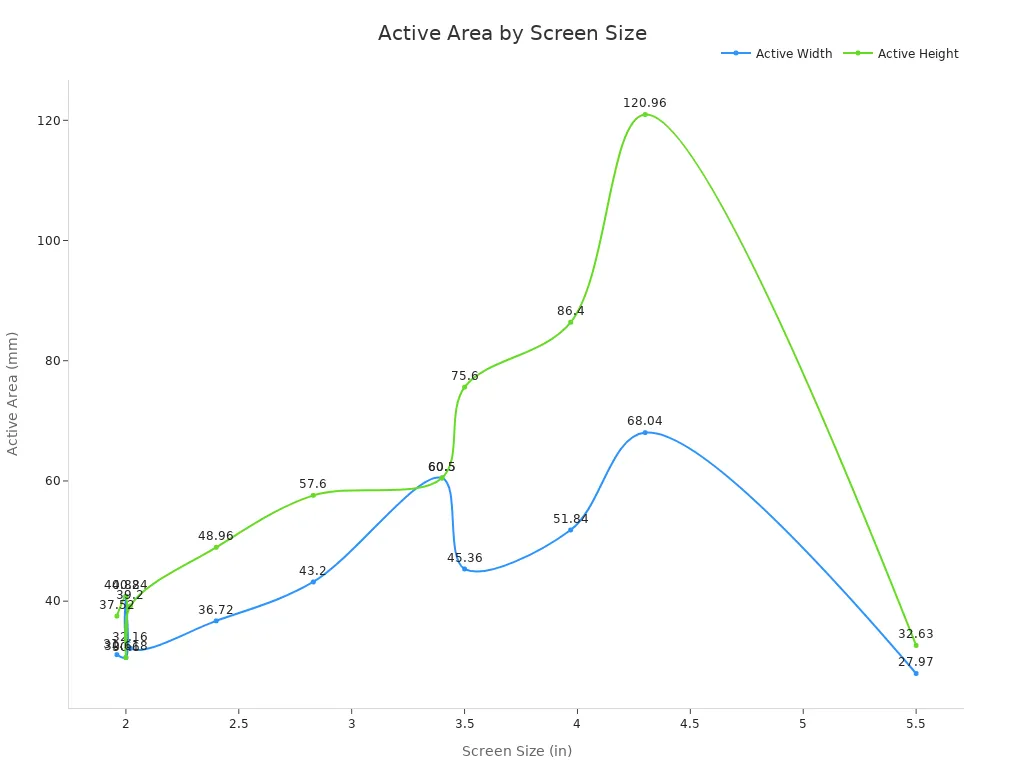
You need to pick the right screen size for your project. Screen size is usually measured in inches from corner to corner. This helps you compare different monitors easily. For example, a 12.1-inch screen is often used in building controls. Smaller screens like 3.5-inch or 4.3-inch are found in portable devices. The table below lists some common screen sizes and their details:
Screen Size (inches)
Resolution
Physical Dimensions (mm)
Active Area (mm)
3.4
480x480
80.7 x 80.7 x 4.19
60.5 x 60.5
4.3
720x1280
74.48 x 147.28 x 2.76
68.04 x 120.96
5.5
240x280
30.07 x 37.43 x 1.56
27.97 x 32.63
2.4
480x640
42.72 x 60.26 x 2.2
36.72 x 48.96
Pick a screen size that matches your use. Small screens are good for wearables or handheld tools. Big screens are better for kiosks or control panels.
Application Needs
Think about how you will use the touch screen monitor. If you want fast and accurate touch, capacitive controllers are a good choice. Many tablets and phones use capacitive technology. It lets you use more than one finger at once. Over 95% of the 1.4 billion smartphones sold each year use advanced touch chips. If your project needs multi-touch, make sure the controller supports it. For simple jobs, a single-touch controller might be enough.
You should also think about the software and hardware you will use. Some controllers work better with Android, iOS, or Windows. This can change how long your project takes and how much it costs. Companies spend a lot to make sure their controllers work well. You have many choices because of this.
Environment
Where you use your touch screen monitor is very important. If you use it outside or in a factory, check if it can handle dust, water, and temperature changes. Look for IP ratings like IP65 or IP67 for dust and water protection. Some controllers can work from -40°C to 85°C. The table below shows some common tests and standards:
Environmental Factor / Test Type
Description / Methodology
Relevant Standards / Applications
Dust and Water Ingress Protection
IP ratings (e.g., IP65, IP67, IP68); dust chamber exposure; water jet and immersion testing
IP Certification standards
Temperature Extremes and Cycling
Testing from -40°C to 85°C; rapid temperature cycling; monitoring touch response and display quality
Automotive (ISO 16750), Military (MIL-STD-810G)
Humidity and Condensation
High humidity operation (up to 95% RH); humidity cycling; dew point testing for condensation effects
Automotive, Industrial
Mechanical Stress Testing
Impact and drop tests; scratch and abrasion resistance; pressure and flexion tests
Automotive, Industrial, Military
Tip: Always make sure your touch screen monitor meets the right standards for where you use it. This helps your project last longer and work better.
Touch Screen Controller Selection
Touch Technology
When picking a touch screen controller, you need to know which touch technology is best for your project. There are two main types: resistive and capacitive. Each one works differently and has its own good points.
Resistive touchscreens work when you press on them. You can use your finger, a stylus, or even gloves. These screens are good for places where people wear gloves, like factories or outside. They cost less, but you can only use one finger at a time. They do not let you use more than one finger.
Capacitive touchscreens, also called PCAP, work by sensing changes in electricity when you touch them. Most phones and tablets use this type. They react fast and let you use more than one finger. This is great for games, drawing, or apps that need gestures. Capacitive screens look clearer and feel smoother.
Here is a simple table to help you compare the two:
Feature
Resistive Touchscreen
Capacitive (PCAP) Touchscreen
Detection Principle
Physical pressure
Changes in capacitance (human touch)
Multi-touch Support
No
Yes
Responsiveness
Less responsive
More responsive
Typical Applications
Cost-sensitive environments
Precision and speed-demanding devices
Response Time
< 15 ms
N/A
Linearity
≤ 3.0%
N/A
Light Transmittance
≥ 78%
≥ 85%
Hardness
N/A
Above 6H
Cost
More affordable
Higher cost
Tip: If you want a screen for a phone, tablet, or any device that needs quick and smooth touch, pick a capacitive touch panel pcap controller. If you just need a simple and cheap screen for one touch, resistive might be enough.
Sensitivity and Accuracy
You want your touch screen to notice your touch fast and get it right. Sensitivity means how easy it is for the screen to notice your touch. Accuracy means how close the spot you touch matches what you see.
Capacitive screens are usually more sensitive and accurate. You can swipe, tap, or pinch, and the screen reacts right away. This is important for drawing, games, or tools that need careful control. A pcap controller board helps your capacitive screen work its best.
Resistive screens can be a little slower. Sometimes you have to press harder, and the spot may not be perfect. This can make it hard to pick small buttons or draw tiny lines.
Note: You can make your touch screen more accurate by calibrating your touch screen controller. Calibration helps the screen match your touch with what you see.
Multi-Touch Support
Many new devices need multi-touch. This means the screen can notice more than one finger at once. You can zoom, turn, or use special moves. Capacitive screens with a good pcap controller board can do multi-touch. That is why you see them in phones, tablets, and some laptops.
Resistive screens cannot do multi-touch. You can only use one finger or stylus at a time. If your project needs pinch-to-zoom or other moves, you should pick a capacitive screen.
Multi-touch makes your device easier and more fun to use. It also lets you add more features to your app.
Power and Durability
Power use and how long the screen lasts are important, especially for portable devices. Capacitive screens use a bit more power because they sense changes in electricity. But they last longer and do not scratch easily. Many capacitive screens are very hard, so they can handle lots of use.
Resistive screens use less power and cost less. They can work in tough places, like factories or outside. But they can wear out faster if you press hard or use sharp things.
If you want a screen that lasts and looks nice, pick a capacitive touch screen controller. For simple and cheap projects, resistive might be better.
Compatibility and Connectivity
System Integration
When you add a touch screen monitor to your project, you want it to work smoothly with your other devices. Good system integration means your screen feels natural to use. You should look for a design that matches how people think and move. If the interface is easy to understand, you will not need to spend much time learning it. For example, a user-centered design helps lower confusion and makes your device easier to use. Over time, you and your device will adapt to each other, making tasks faster and more comfortable.
In complex electronics, you also need to think about how the touch screen monitor handles noise and changes in the environment. Some screens can adjust their brightness and touch sensitivity. This helps you use them in bright sunlight or dark rooms. Newer designs even use AI to make touch more accurate and reduce mistakes. You can find these features in phones, medical tools, and cars.
Tip: Choose a system that lets you upgrade or fix parts easily. This can save you money and keep your device working longer.
Interface Options
You have different ways to connect your touch screen controller to your system. The most common options are touch and gesture interfaces. Each one has its own strengths. The table below shows how they compare:
Interface Option
Interaction Techniques
Mean Time (s)
Mean Accuracy (%)
User Satisfaction (UEQ)
Notes
Touch
Swipe, Tap, Drag, Pinch
2.94
92.8
5.63
Best for fast, precise 2D tasks
Gesture
Wave, Grab, Rotate, Spread
3.61
90.0
5.85
Best for 3D or depth control tasks
Touch interfaces help you finish tasks faster and with better accuracy. Gesture controls feel more natural for some actions, like moving objects in 3D. You should pick the interface that fits your project’s needs.
Mounting Standards
Mounting standards tell you how to attach your touch screen monitor to your device or wall. You want a standard that fits your space and keeps the screen steady. Some common mounting types include VESA mounts, panel mounts, and open-frame mounts. VESA mounts use a set pattern of holes, making it easy to swap screens if you need to. Panel mounts let you fit the screen into a flat surface, which is good for kiosks or machines. Open-frame mounts give you more freedom to design your own case.
Note: Always check the mounting options before you buy. This helps you avoid problems during installation.
Comparing Touch Screen Controllers
Datasheets and Specs
When you compare touch screen controllers, you should always start with the datasheet. A datasheet is like a report card for a device. It tells you what the controller can do and what it cannot do. You will find important details such as voltage range, response time, and supported screen sizes. Look for the number of touch points, power use, and how accurate the controller is.
Here is a simple checklist to help you read a datasheet:
Check the supported screen size and resolution.
Look for the number of touch points (single or multi-touch).
Find the power requirements.
Review the operating temperature range.
See if the controller supports your operating system.
You can use a table to compare two controllers side by side. This makes it easy to spot the differences.
Feature
Controller A
Controller B
Max Touch Points
2
10
Power Consumption
Low
Medium
Operating Temp (°C)
-20 to 70
-40 to 85
OS Support
Windows
Android, iOS
Tip: Always match the specs to your project needs. If you want a touch screen monitor for outdoor use, pick a controller with a wide temperature range.
Vendor and Software Support
You should also check the support you get from the company that makes the controller. Good vendors give you clear manuals, software drivers, and updates. This makes your project easier and faster. If you run into problems, you want quick help.
Ask these questions before you choose:
Does the vendor offer easy-to-read guides?
Can you get software updates?
Is there a support team you can contact?
Are drivers available for your system?
Strong vendor support helps you avoid delays. It also means your touch screen controllers will work better with your other devices.
Note: Pick a vendor with a good reputation. This gives you peace of mind and helps your project succeed.
Common Mistakes
Ignoring Compatibility
Some people think any touch screen controller will work. This is not true. Many just buy the cheapest one without checking if it fits. This can cause big problems later. You might need to redesign your project. Your device might not pass safety tests. Look at the table below for real problems people have had:
Mistake
Description
Consequences
Choosing a random display at the beginning
Buying the cheapest display without checking specs or fit
Mechanical and firmware changes, connector issues, compatibility problems
Using poorly documented displays
Picking screens with no drivers or guides
Lost time, no support, failed integration
Attempting complex display integration without experience
Designing custom controllers from scratch
Delays, wasted resources, technical issues
If you do not check compatibility, you can face long delays. Fixing these mistakes can cost a lot. Users may not be happy with your device.
Overlooking Environment
You should always think about where your device will be used. Many projects fail because people forget this step. Companies like Riverdi test their screens in hard places. They check if screens work in heat, cold, wet, and humid air. If you skip these tests, your device might break outside or in public. Here are some risks you might face:
Outdoor screens can get hotter than you expect.
Passive cooling may not stop your device from overheating.
Humidity and water can hurt screens if you do not test for them.
Devices that only pass simple tests may break quickly in real life.
Always test your touch screen controller where you will use it. This helps you stop problems early and keeps users happy.
Skipping Testing
You might want to skip testing to save time or money. This is a bad idea. If you do not test, you can miss problems like slow touch or overheating. Testing helps you find problems before users do. It also makes you sure your device works well.
Test your device with real people and in real places.
Try different moves, gloves, and lighting.
Make sure the screen reacts fast and is accurate.
Good testing saves you time and money. It helps you make a device that works well and lasts longer.
Selection Process
Checklist
You want to make sure you pick the right touch screen controller for your project. A checklist helps you stay organized and avoid missing important steps. Use this list to guide your decision:
Make sure the controller works with your system and software.
Look at the environment where you will use the device.
Compare datasheets and technical specs.
Check vendor support and available drivers.
Plan for easy mounting and installation.
Tip: Print this checklist or save it on your phone. You can use it each time you start a new project.
A good checklist keeps you on track. It helps you determine the best touch screen controller for your needs.
Prototyping
Prototyping means building a simple version of your device before making the final product. You can test how the touch screen controller works in real life. This step lets you find problems early.
Start by connecting the controller to your system. Try different actions like tapping, swiping, and zooming. Test the device in the same place where people will use it. For example, if your device will be outside, check it in sunlight and rain.
Ask others to try your prototype. Watch how they use it. Listen to their feedback. You can fix issues before you spend more money on production.
Note: Prototyping saves you time and money. It helps you build a device that works well and makes users happy.
Picking the right touch screen controller needs good planning. You should:
Make sure the controller fits your project’s size, needs, and where it will be used.
Look at datasheets and see if the vendor gives good help.
Try out your prototype in places where it will really be used.
Studies show people like systems that are simple to use, not just ones that are fast or make few mistakes. If you make things easier for users, your project will do better. Always think about both the technical details and how the device feels every day.
FAQ
What is the difference between resistive and capacitive touch screens?
Resistive screens need pressure to work. You can use gloves or a stylus. Capacitive screens sense your finger’s touch. You get faster response and multi-touch. Most phones use capacitive screens.
How do I know if a controller supports multi-touch?
Check the datasheet or product page. Look for “multi-touch” or the number of touch points. If you see “10-point touch,” you can use all your fingers at once.
Can I use a touch screen outdoors?
Yes, but you need to check for weather protection. Look for IP ratings like IP65 or IP67. These ratings mean your screen can handle rain, dust, and sunlight.
What should I do if my touch screen is not accurate?
Try calibrating your touch screen controller. Many controllers have a calibration tool in their software. If problems continue, check for dirt or damage on the screen.